AI Creator Tools In Looksy

Remove backgrounds fast and make cleaner image assets

Looksy background remover makes it easier to isolate people, products, and objects without manual masking. That means faster transparent PNGs, cleaner ecommerce visuals, neater profile graphics, and better starting points for new edits.

Automatic subject cutout Transparent PNG workflow Useful for products and portraits
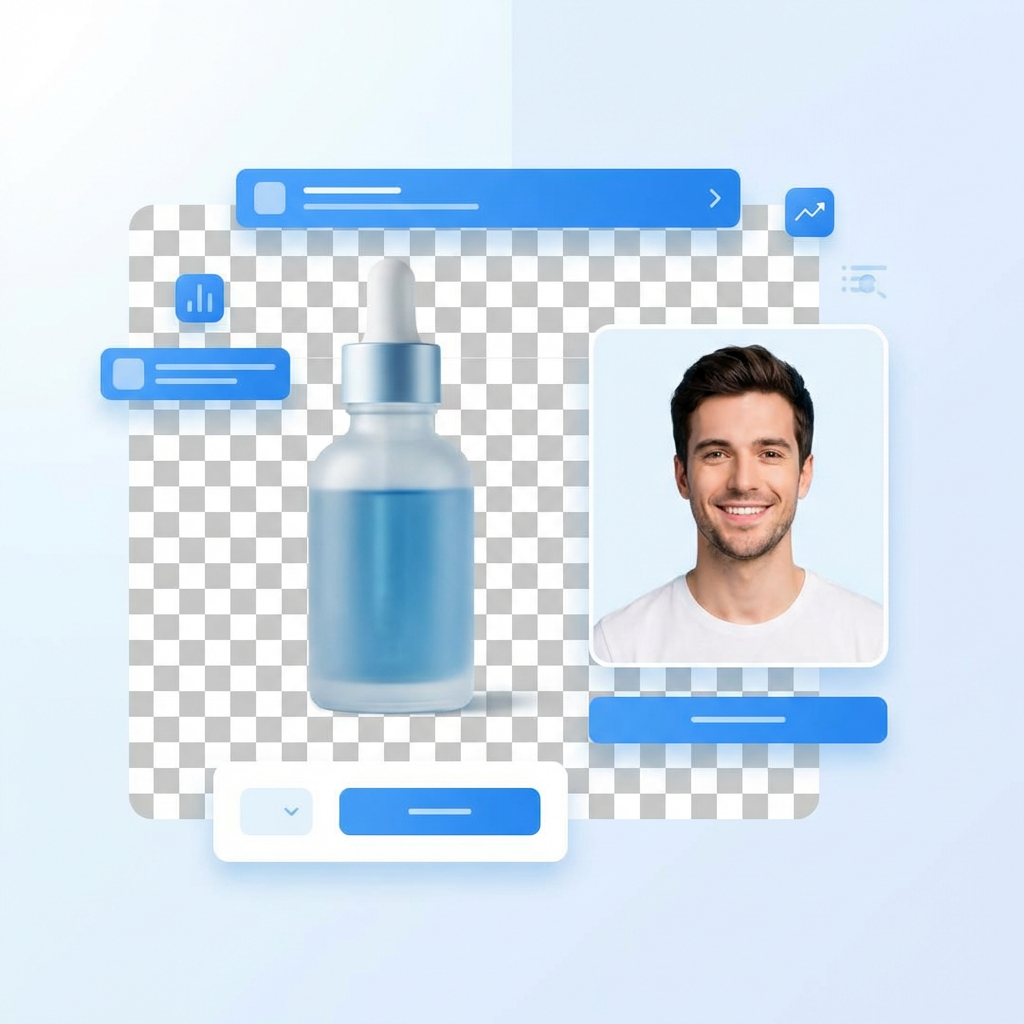
Looksy AI background remover product and portrait cutout artwork
Clean cutouts Transparent assets Better ecommerce visuals
Playground Preview

Upload a photo and isolate the subject

The strongest background remover pages make the workflow obvious: upload an image, preview the subject cutout, then use the isolated asset anywhere else. That same intent fits Looksy perfectly.

Best for product listings, creator assets, and any image that needs a cleaner subject.
Cutout Preview Background remover preview concept
Clean edge detectionUseful when hair, fabric, product shape, or accessories need a neat cutout.
Transparent workflowTake the cutout into product pages, posters, or presentations.
Fewer manual editsSkip hand masking for quick creator and ecommerce tasks.

Why background removal pages rank well

Users searching for background remover tools usually want one of three outcomes: a transparent PNG, a cleaner product photo, or a better subject cutout for another design. Ranking pages speak to those outcomes directly instead of talking only about the model.

That is the right approach for Looksy too. This page is positioned around practical jobs users already understand: remove clutter, isolate the subject, and make the image easier to use elsewhere.

Transparent PNGs

Create isolated assets that are easier to place on websites, marketplaces, decks, and creator posts.

Cleaner ecommerce photos

Remove distracting rooms, tables, and busy scenes around products or outfits.

Better editing base

Once the background is gone, replacing it or restyling the image becomes much easier.

Best uses for Looksy background remover

Product listings

Make cleaner white-background or transparent product visuals for catalogues, ads, and ecommerce product pages.

Profile and creator shots

Cut out the subject for cleaner profile images, thumbnails, channel art, and branded social graphics.

Design prep

Prepare assets for posters, collages, moodboards, pitch decks, and later AI editing workflows.

How to get better background removal results

1

Use a clear subject

Photos with a readable subject and visible edges usually produce the cleanest cutouts.

2

Avoid heavy blur

If the subject blends into the background too much, edges become harder to separate cleanly.

3

Choose the right output

Transparent PNG is ideal for design reuse, while white backgrounds work well for catalog and product shots.

4

Use it as a starting point

The isolated image can then feed into restyling, compositing, ad design, or marketplace publishing.

Background remover before and after cutout concept

Background remover intent is strongly outcome-driven

People search for remove background, transparent background maker, product cutout, and photo background remover because they want a clean file they can reuse immediately. That is why this page emphasizes speed, clarity, and practical reuse.

For Looksy, it also signals that the app is not only about try-on. It now includes creator utilities that support shopping, social content, product work, and visual cleanup.

Background remover FAQ

What does an AI background remover do?

It detects the main subject in an image and removes the surrounding background automatically, often creating a transparent PNG or a cleaner isolated image.

Can I use it for product photos?

Yes. Product pages, marketplaces, and ads often need cleaner subject isolation to look more polished and easier to compare.

Does it work for people and portraits too?

Yes. Portrait cutouts are useful for creator graphics, profile images, posters, and social content.

Why remove the background before editing further?

A clean cutout gives you more control when placing the subject on a new background or combining it with other design elements.